
How to Install MangaFusion Chrome Extension
Step-by-step guide to install the MangaFusion browser extension from the Chrome Web Store.
MangaFusion Published on 9 tháng 6, 2025 Showing English version
Chrome ExtensionTutorialInstallation
MangaFusion is now available on the Chrome Web Store. Install it in Chrome, Edge, Brave, or any Chromium-based browser in just a few clicks — no manual download or developer mode required. This guide walks you through the full process from install to your first translation.
Before You Start
Make sure you have:
- Google Chrome, Microsoft Edge, or Brave (Chromium-based browsers)
- Your MangaFusion account (sign up free on the website if you don't have one)
Step 1 — Install from the Chrome Web Store
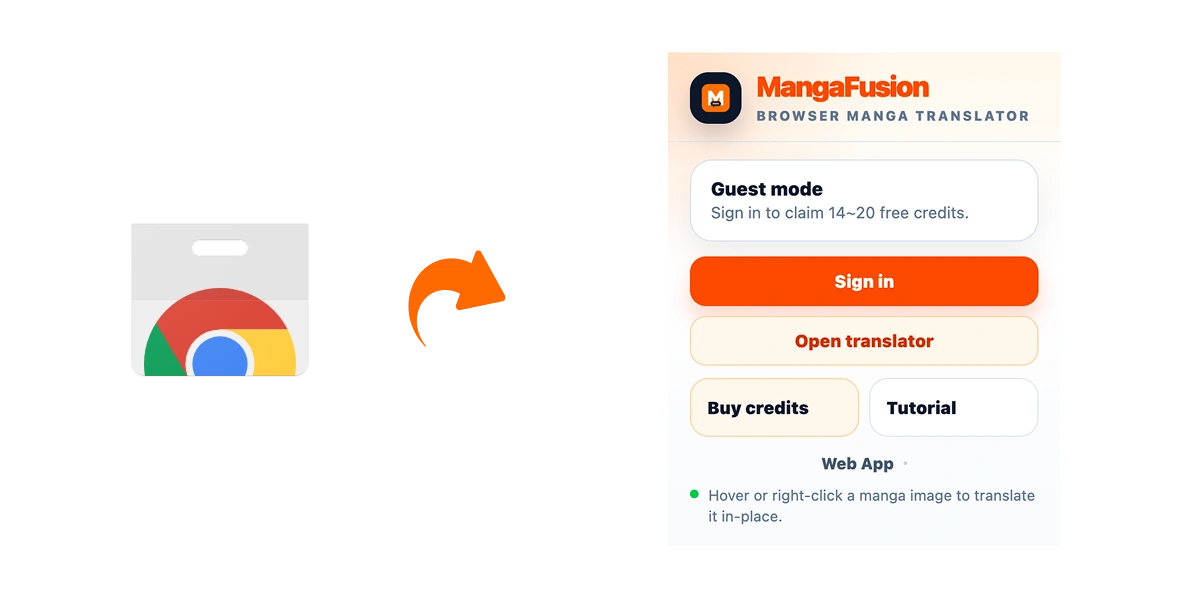
- Open the MangaFusion listing on the Chrome Web Store.
- Click Add to Chrome (or Get in Edge).
- Confirm the installation when your browser prompts you.
If successful, MangaFusion appears in your extensions list and is ready to use.
Step 2 — Pin the Extension
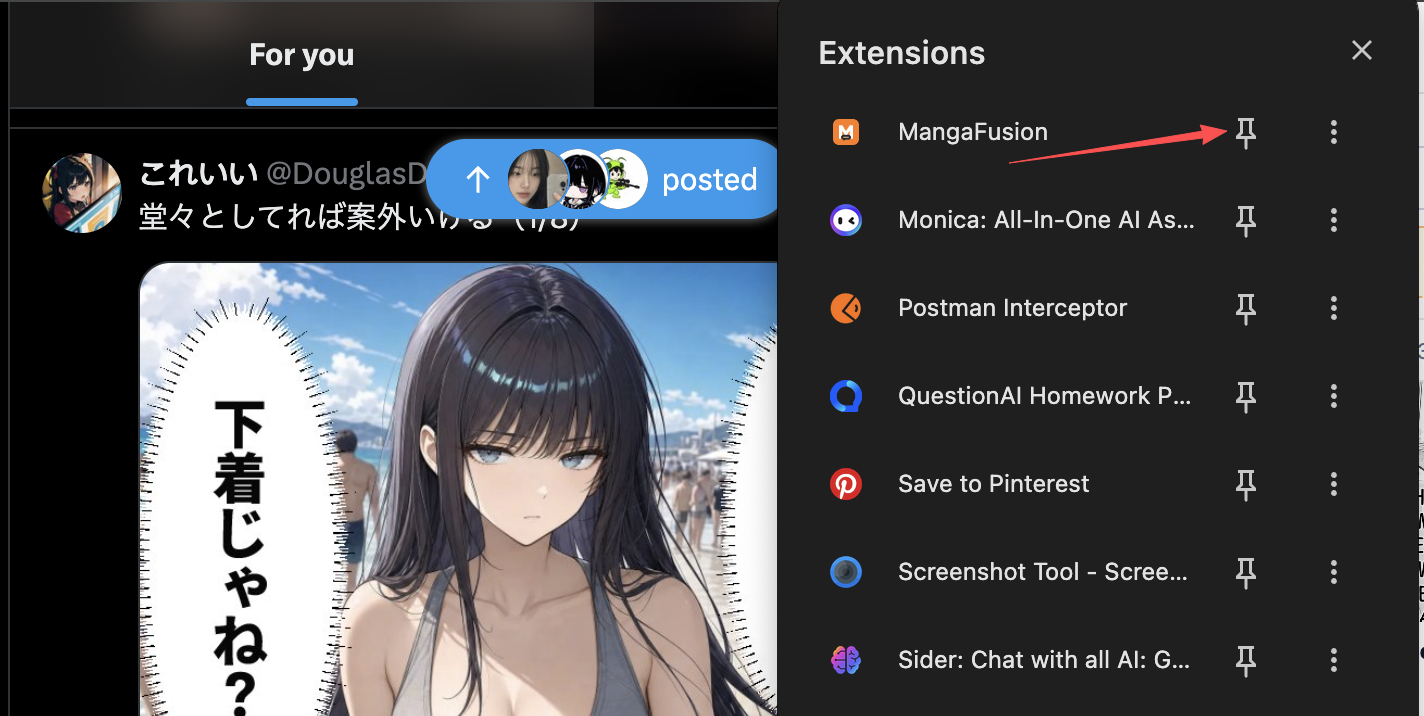
- Click the puzzle piece icon (Extensions) in the browser toolbar.
- Find MangaFusion and click the pin icon so it stays visible.
You can now open the extension popup from the toolbar at any time.
Step 3 — Sign In and Start Translating
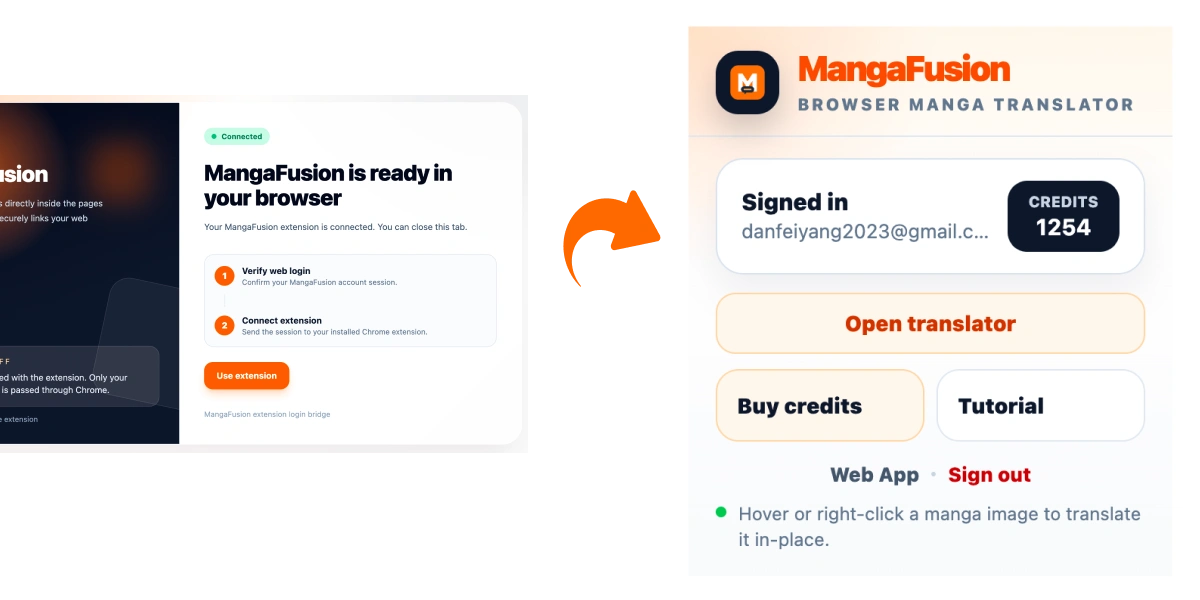
- Click the MangaFusion icon in the toolbar.
- Sign in with your MangaFusion web account. Credits and settings sync automatically.
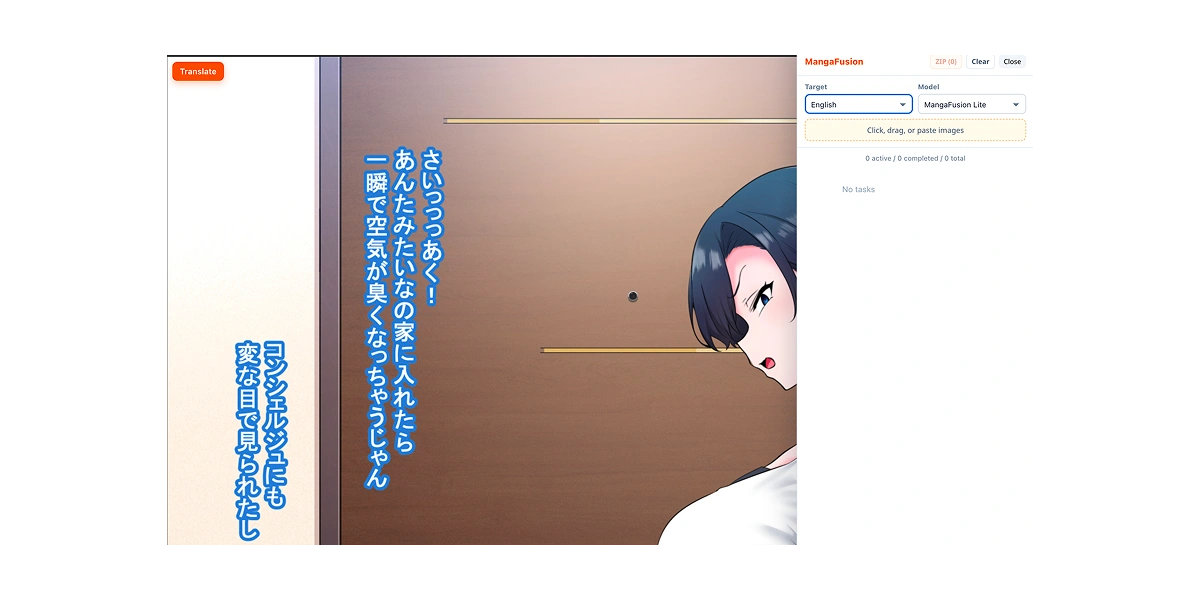
- Open any manga website, hover over or select manga panels, and translate directly on the page.
For more usage tips, visit the Extension product page.
Need Help?
If you run into issues, contact us at [email protected] or join our community on Discord.